Steps
- Use the phone with the Tesla app. Open the Tesla app, signed in to the Tesla account you connected to AskMyEV, and select the car.
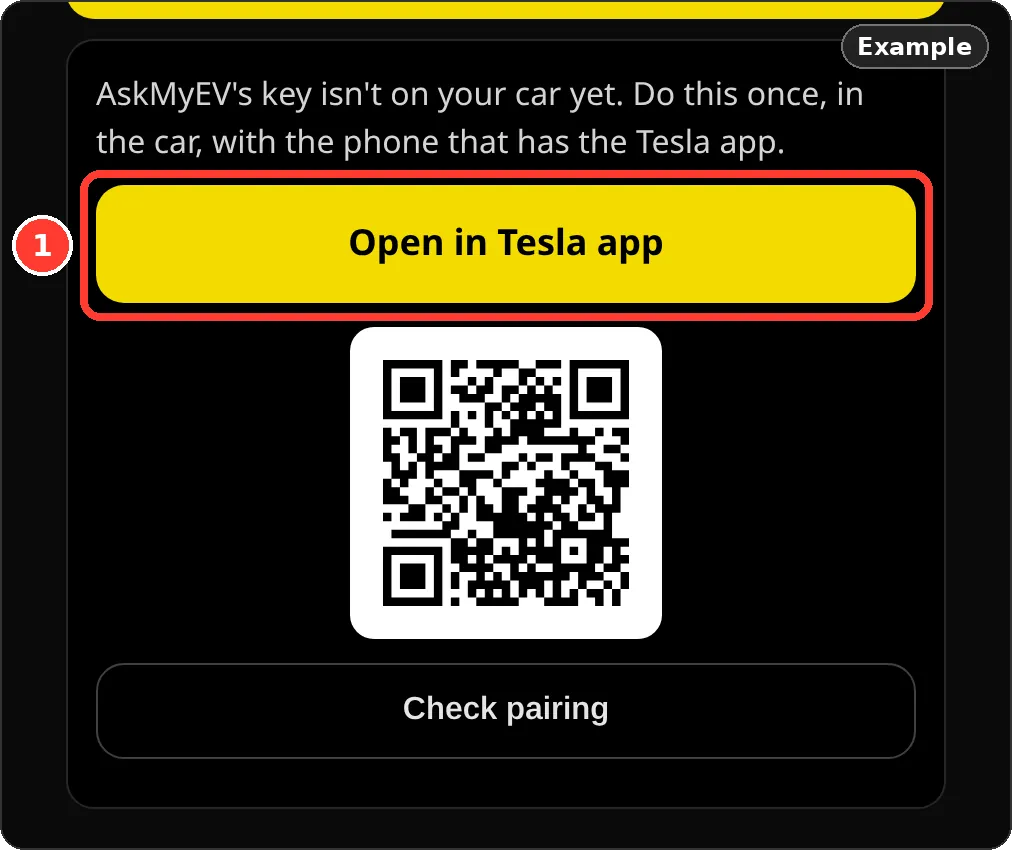
- Open AskMyEV's key link. On that phone, tap Open in Tesla app on AskMyEV's key screen (or your Account page). On a computer, scan the QR code with that phone. The link is
tesla.com/_ak/askmyev.com.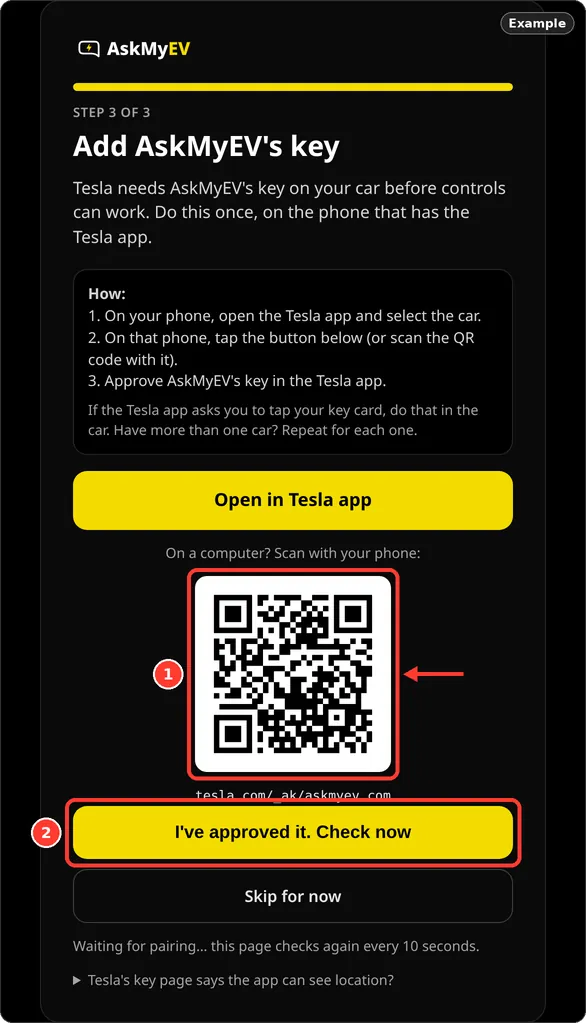
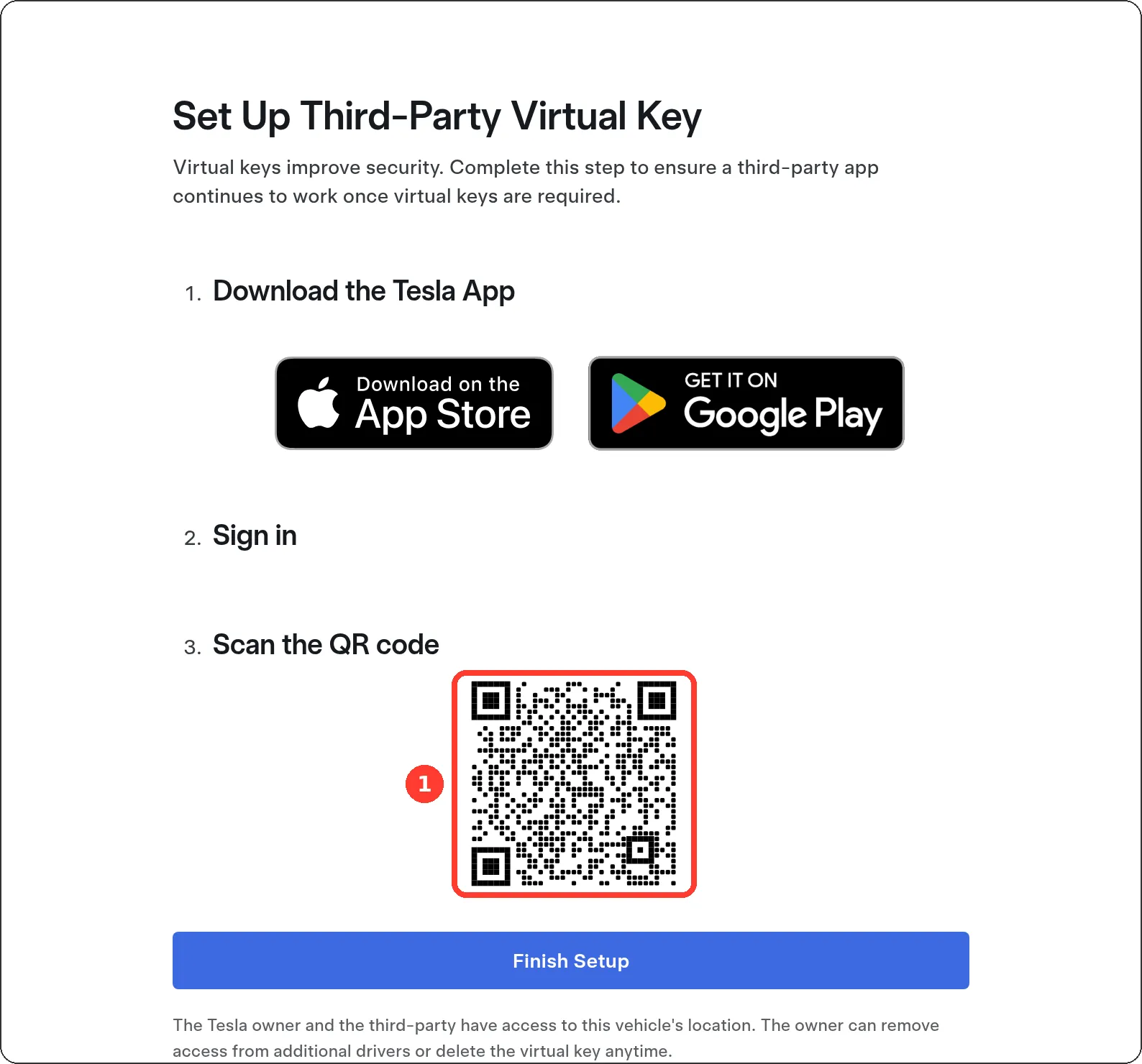
Example screen from a test account. - If Tesla's web page opens, tap Finish Setup. If your phone opens Tesla's Set Up Third-Party Virtual Key page instead of the app, tap Finish Setup.
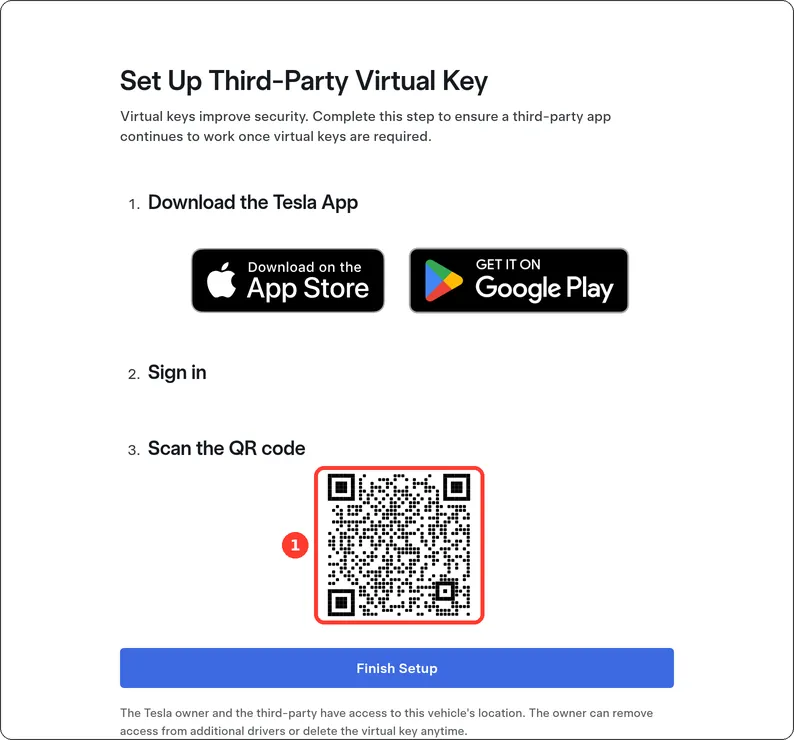
Tesla's page (tesla.com), screenshot October 2026. - Approve AskMyEV's key in the Tesla app. The Tesla app asks you to approve adding AskMyEV's key. Approve it. If the Tesla app asks you to tap your key card, do that in the car.
- Check on AskMyEV. AskMyEV checks every 10 seconds and shows Key paired when it sees the key. You can also tap I've approved it. Check now.
- More than one car? Repeat. Controls need the key on each car. AskMyEV lists each car as paired or not paired yet. Select the next car in the Tesla app and repeat.
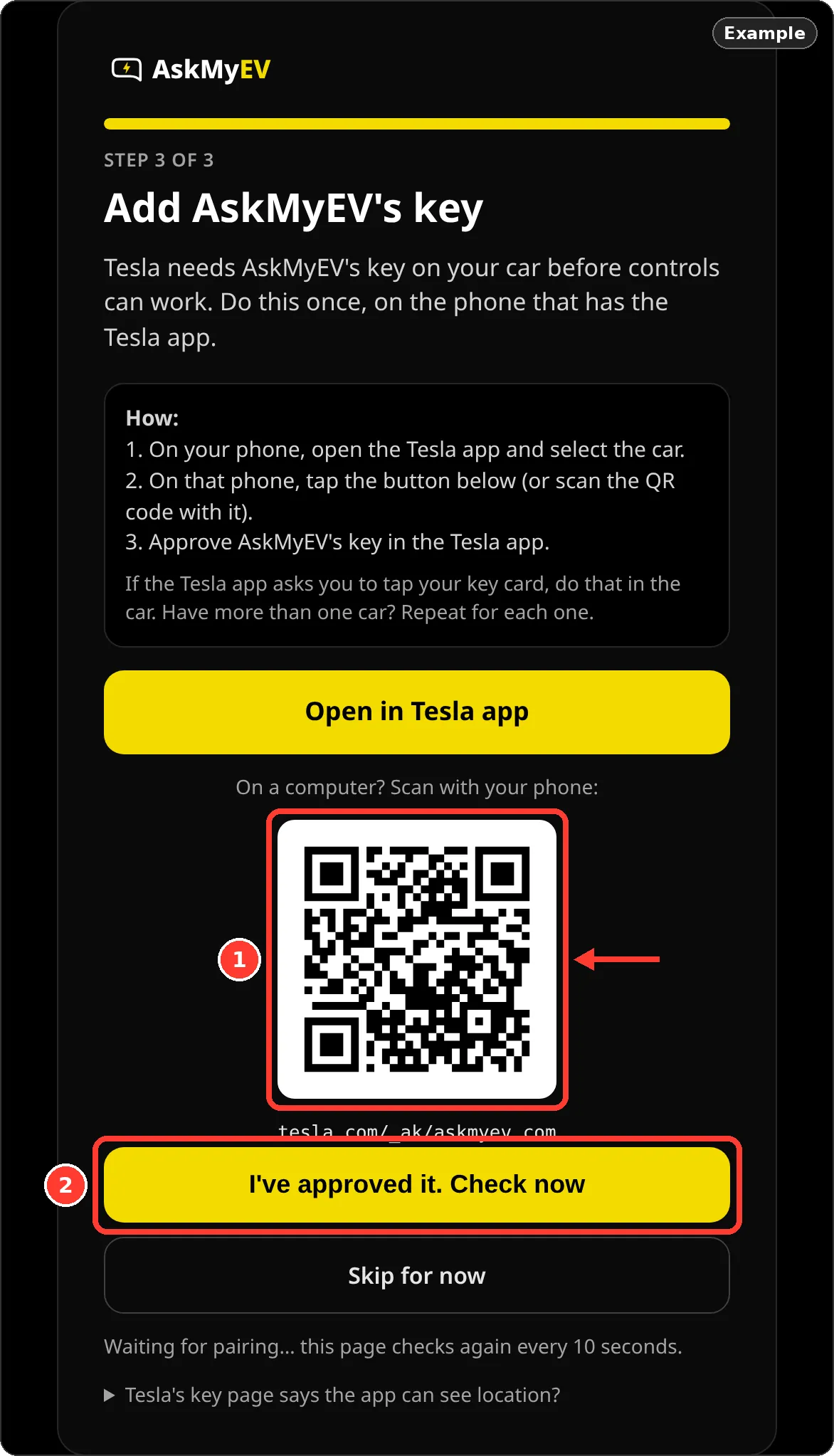
Reading your car's data works without the key. Only car controls and remote start need it.
Skipped it? Pair later
Sign in at askmyev.com/account. The key card has Open in Tesla app, the QR code and Check pairing.
If pairing doesn't show
- Tesla's website opened instead of the app: open the Tesla app first, select the car, then open the link again on the same phone.
- Tesla says it can't grant access: the Tesla app may be signed in to a different Tesla account than the one you connected to AskMyEV. Use the same account.
- One car paired, another not: select the other car in the Tesla app and repeat.
- Still waiting after a few minutes: force-close the Tesla app and try again, or try later. Then tap I've approved it. Check now.
Remove the key
On the car's touchscreen, go to Controls → Locks and delete AskMyEV's key. Turning car controls off on your Account page also stops all commands.
Tesla's key page says the app can see location?
Tesla's page says “The Tesla owner and the third-party have access to this vehicle's location.” That's Tesla's standard wording for every app's key. AskMyEV only asks Tesla for location permission if you turn on Car location. Then it looks the location up live, only when your AI asks, and doesn't save the coordinates (it keeps a log of when lookups happen for 1 year). AskMyEV's live data stream never includes location. With Car location off, AskMyEV doesn't request your car's location.
Frequently asked questions
Do I need to be in the car?
Usually not. You approve the key in the Tesla app. If the Tesla app asks you to tap your key card, do that in the car.
Do I need the key just to read my car's data?
No. Only car controls and remote start need it.
Does the key let AskMyEV drive my car?
No. AskMyEV never moves the car. With car controls on, your AI can change climate, charging, locks, the rear trunk and the frunk when you ask. Remote start is a separate switch.
Can I remove it?
Yes, anytime, on the car's touchscreen under Controls → Locks.
Ask your own Tesla, in the AI you already use
Read-only by default, set up in about 3 minutes. 30-day free trial (card required, cancel anytime) or a free one-time health check with no card. Plans are $4.99/mo or $39/yr.
 Add to ChatGPT
 Add to Claude
 Add to Grok