Before you start
You need Cursor on your computer and the Tesla account that owns the car. Cursor connects to AskMyEV over Streamable HTTP and signs in with OAuth. Cursor asks before it runs an MCP tool, unless you changed that in its settings.
Part A
Add AskMyEV in Cursor
- Open your MCP config file. In Cursor, open (or create)
~/.cursor/mcp.jsonin your home folder. That makes AskMyEV available in every project. To add it to one project only, use.cursor/mcp.jsonin that project instead. - Add AskMyEV as a remote server. Paste this and save the file. If the file already has other servers, add the
"askmyev"entry inside the existing"mcpServers"block.
No API key or headers are needed. AskMyEV signs you in with OAuth, which Cursor supports for remote servers.{ "mcpServers": { "askmyev": { "url": "https://askmyev.com/mcp" } } } - Turn it on and sign in. Open Customize in Cursor's sidebar and find AskMyEV in the MCP list. Make sure its toggle is on. When Cursor asks you to sign in to AskMyEV, continue. AskMyEV's setup opens in your browser (Part B).
Part B
Connect your Tesla (AskMyEV's screens)
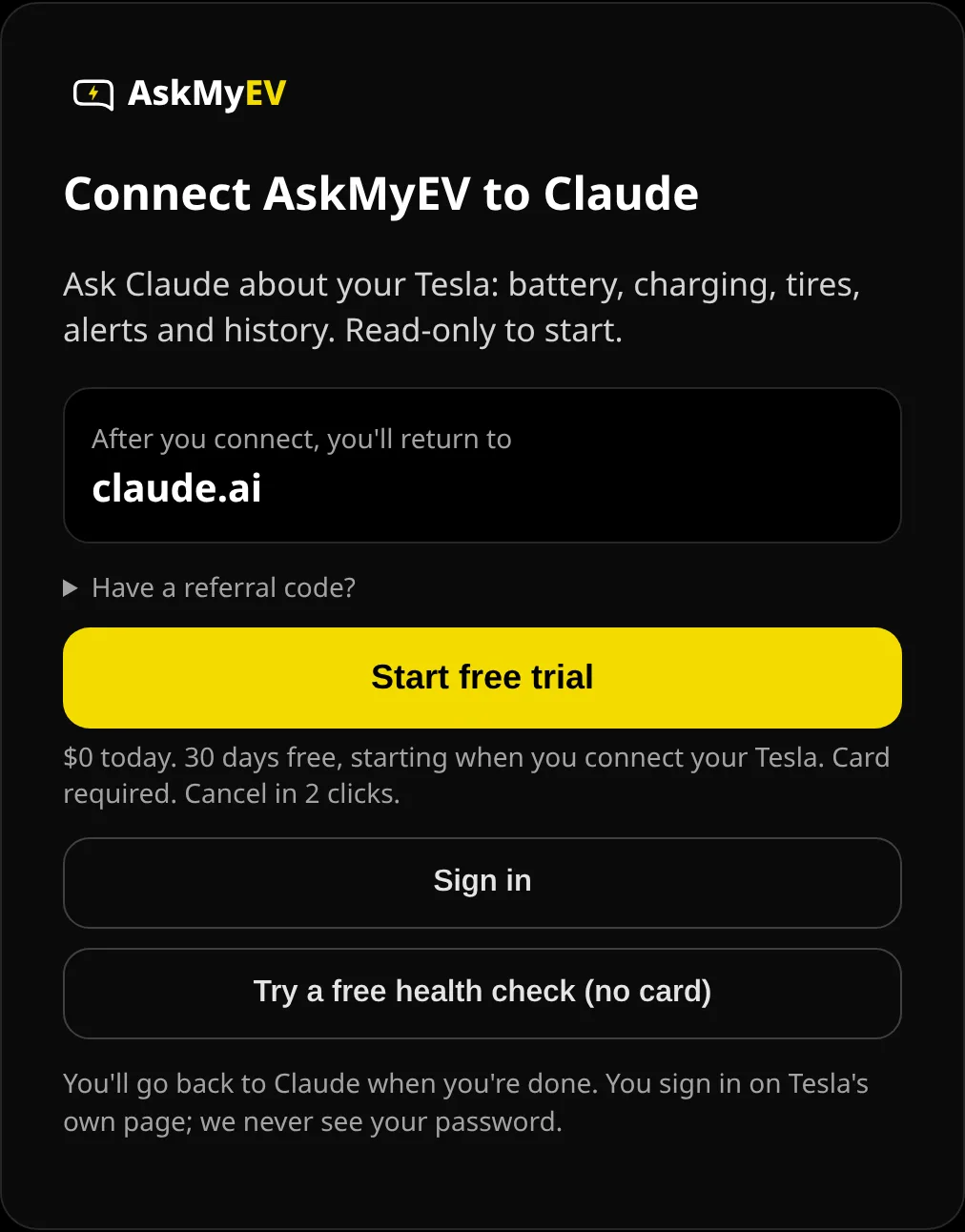
Every screen is explained in What happens after you add AskMyEV. AskMyEV's Connect screen marks Cursor as an Unverified app, because it isn't ChatGPT, Claude or Grok. That's expected when you set it up yourself.
- Tap Start my free month (or Sign in). Cursor opens AskMyEV's Connect AskMyEV to Cursor screen. Check the app name you'll return to, then tap Start my free month. Already have an AskMyEV account? Tap Sign in.
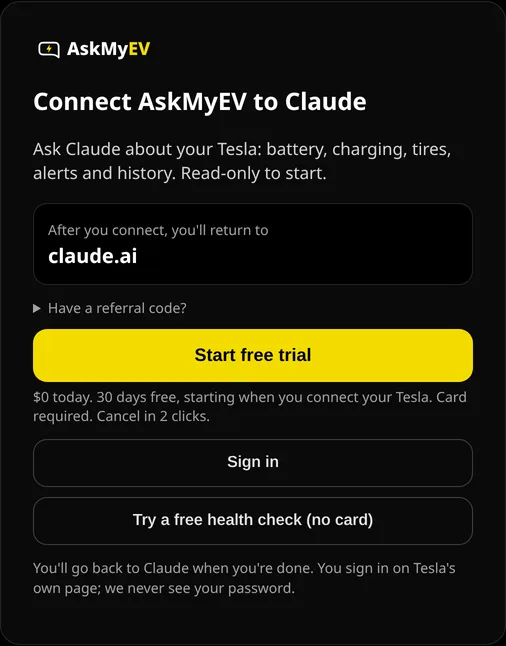
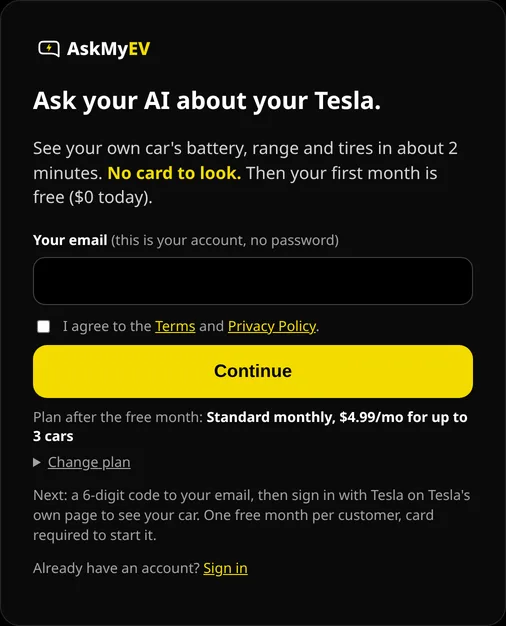
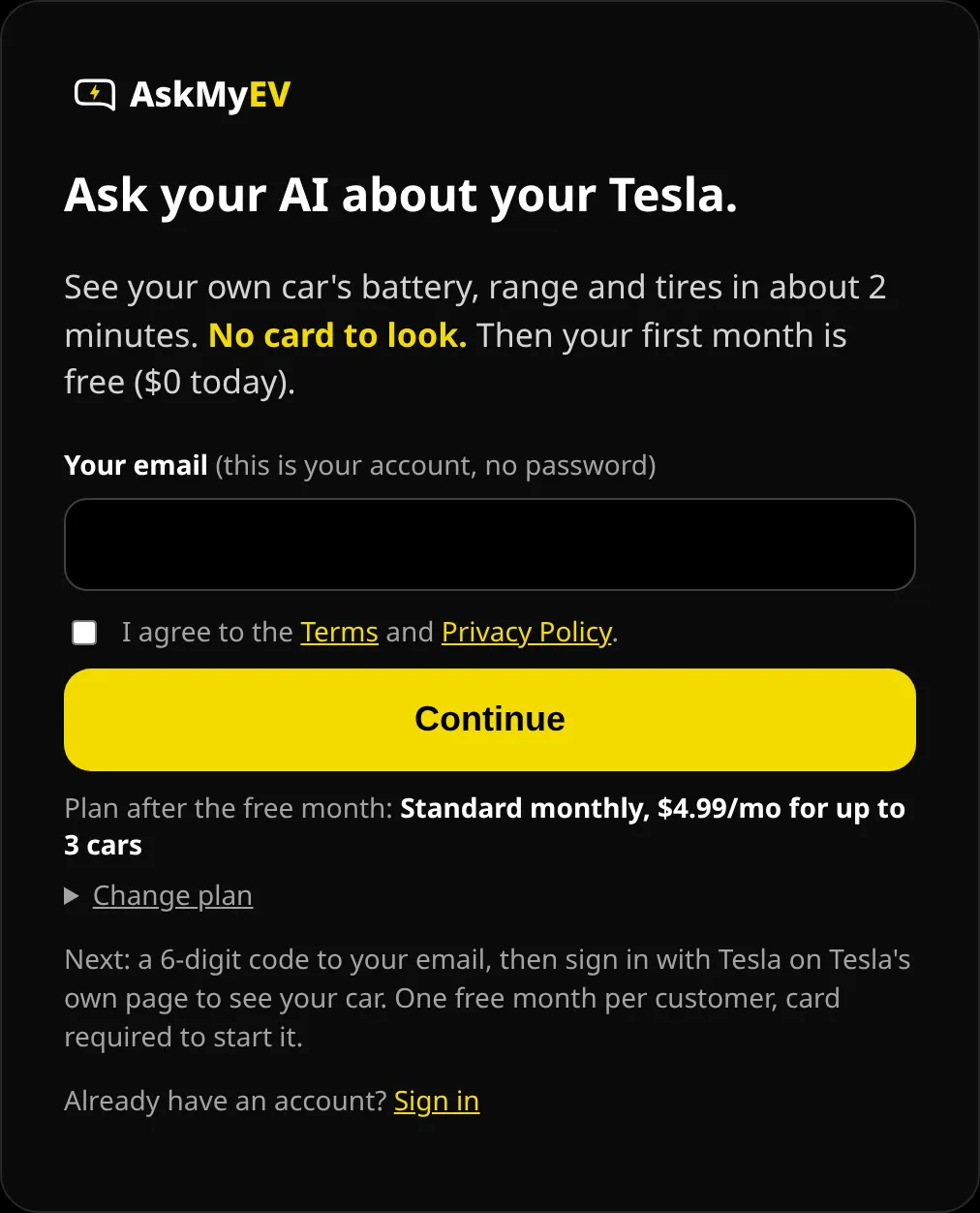
Example screen from a test account. Have a referral code? Open Have a referral code? first. - Enter your email. Enter your email, agree to the Terms and tap Continue. Standard monthly ($4.99/mo after the free month, up to 3 cars) is picked for you; tap Change plan for yearly or Fleet. We email you a 6-digit code; type it in, or tap the link in the email. There's no password and no card yet.
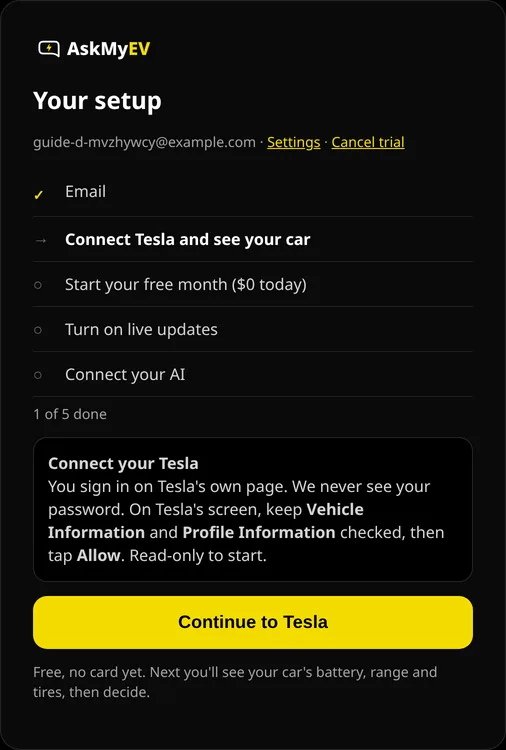
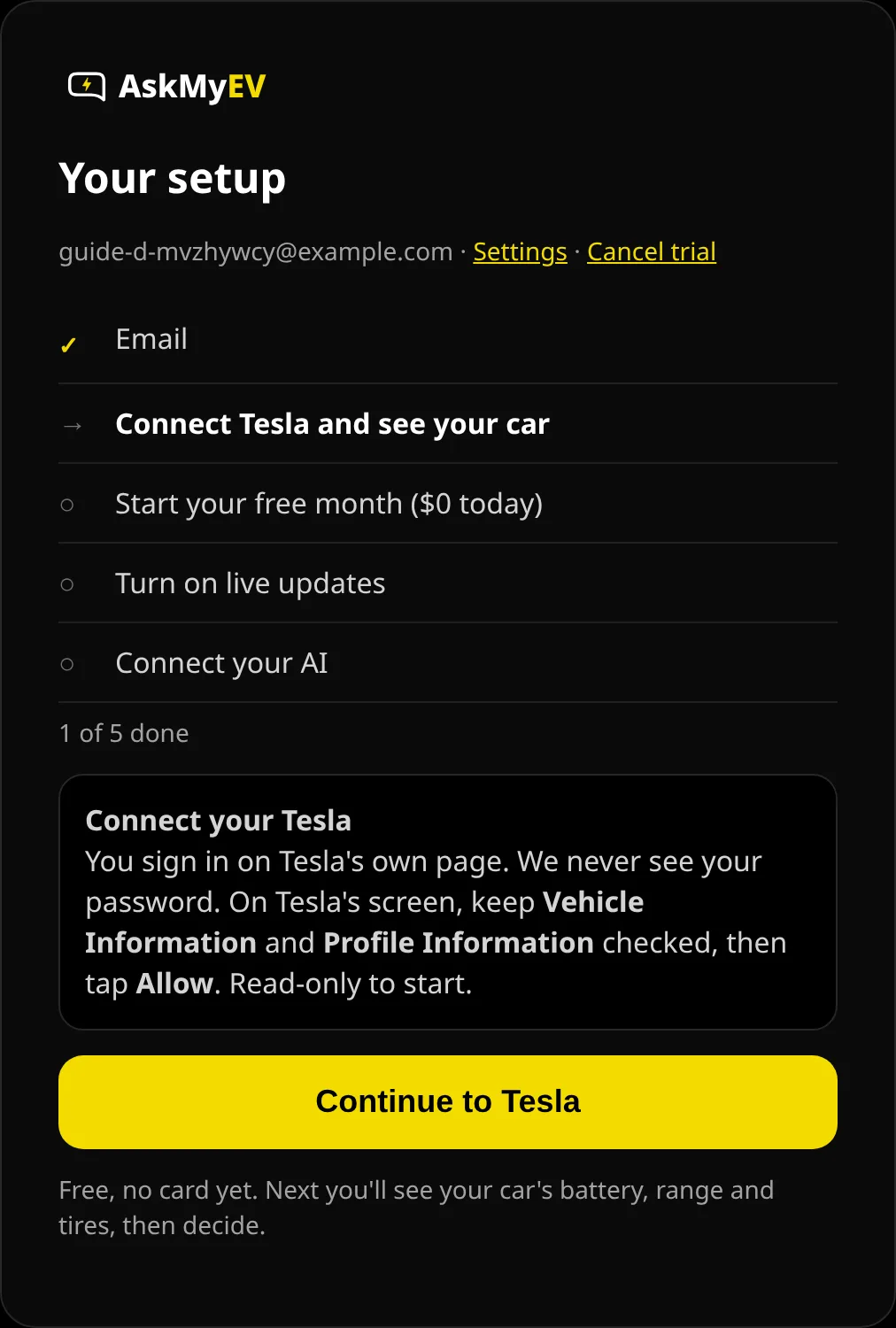
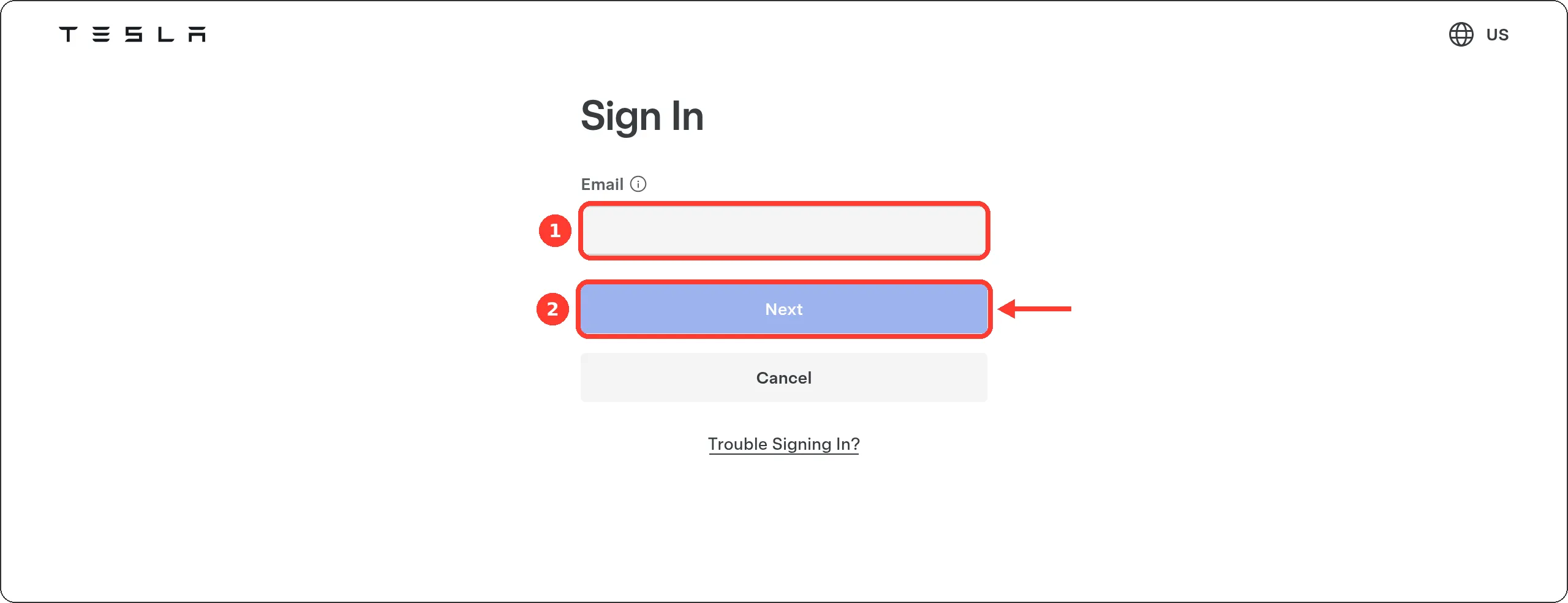
Example screen from a test account. - Connect your Tesla (free, no card yet). Tap Continue to Tesla. Tesla's own sign-in page opens (auth.tesla.com); AskMyEV never sees your password. Leave Vehicle Information and Profile Information checked and tap Allow. That's read-only.
Example screen from a test account. 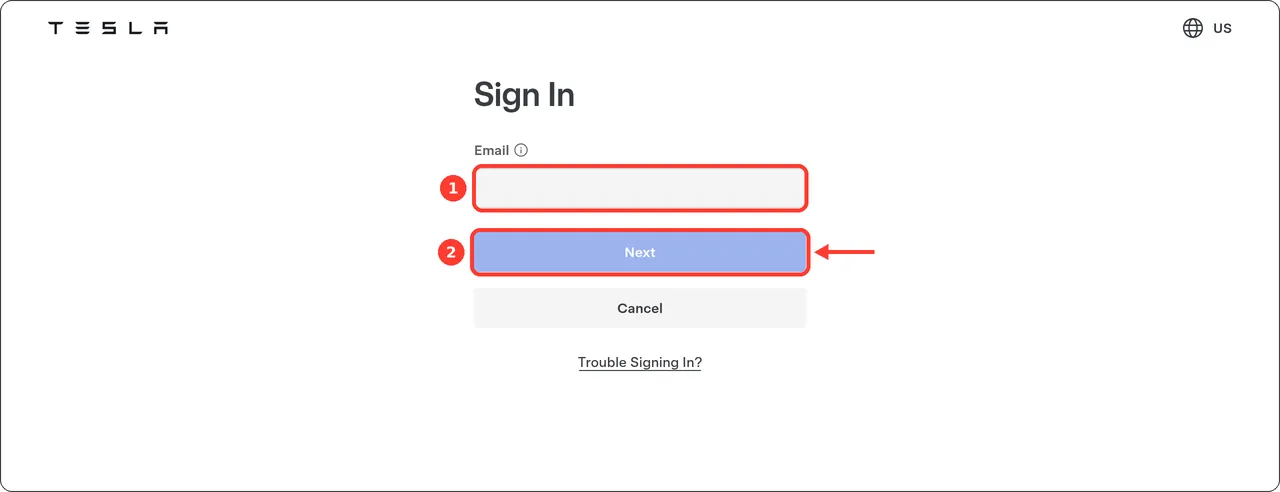
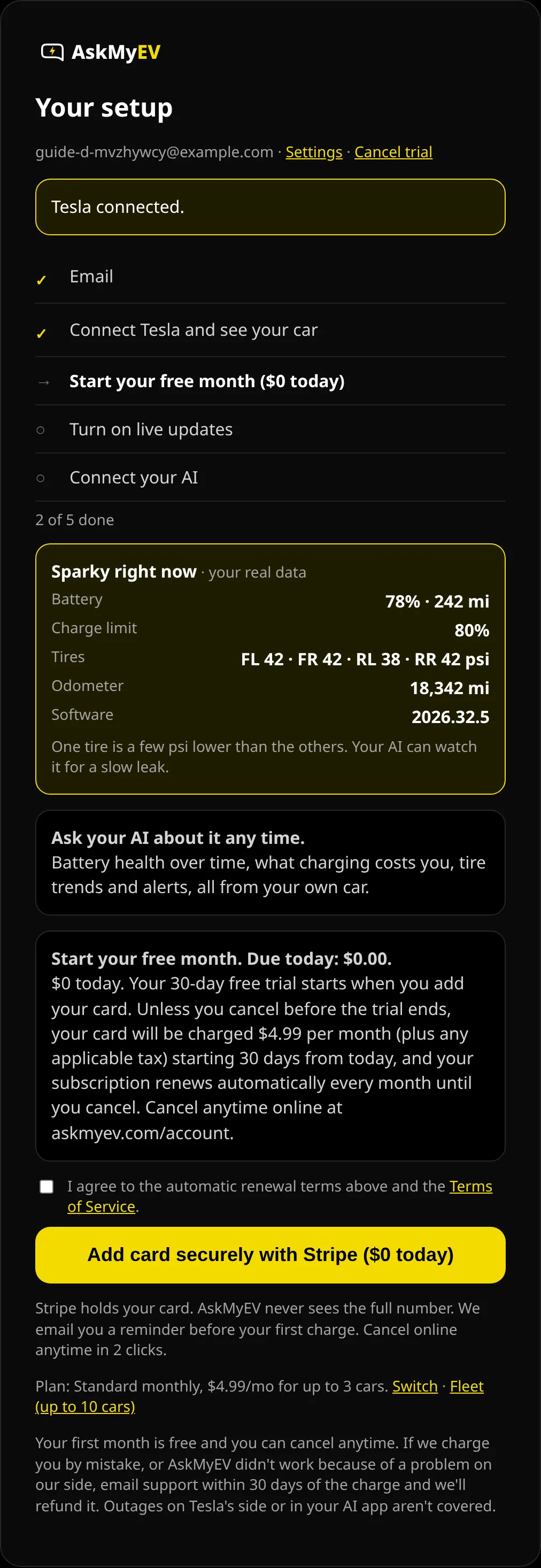
Tesla's page (tesla.com), screenshot October 2026. We can't show Tesla's permission screen; it needs a real Tesla account. - See your car, then start your free month ($0 today). AskMyEV shows your car's battery, range, charge limit and tire pressures from your own data (if the car is asleep we say so; we never wake it). Like it? Read the renewal terms, tick the box and tap Add card securely with Stripe ($0 today). Your 30-day free trial starts when you add your card. One free trial per customer.
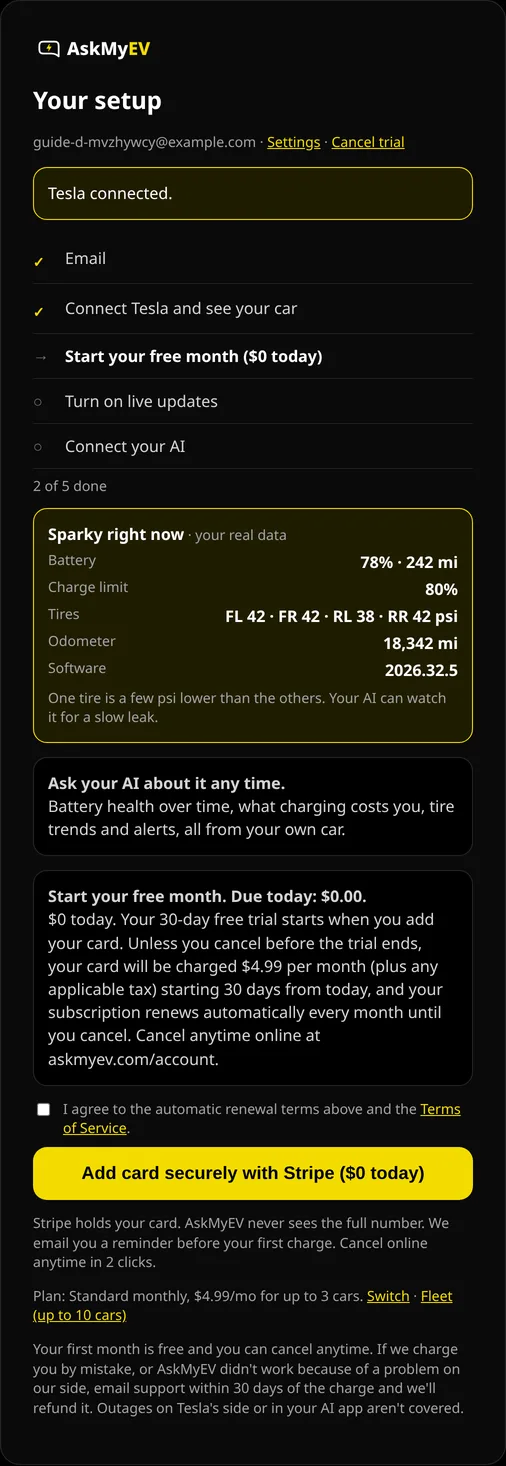
Example screen from a test account. The car numbers are sample data. - Choose optional features, or leave them off. Car location, Car controls and Remote start are all off. Leave them off, or choose On and tick its box, then tap Save features. If you turned something on, Tesla asks once more for that permission. Turned on car controls? Next you add AskMyEV's key to your car.

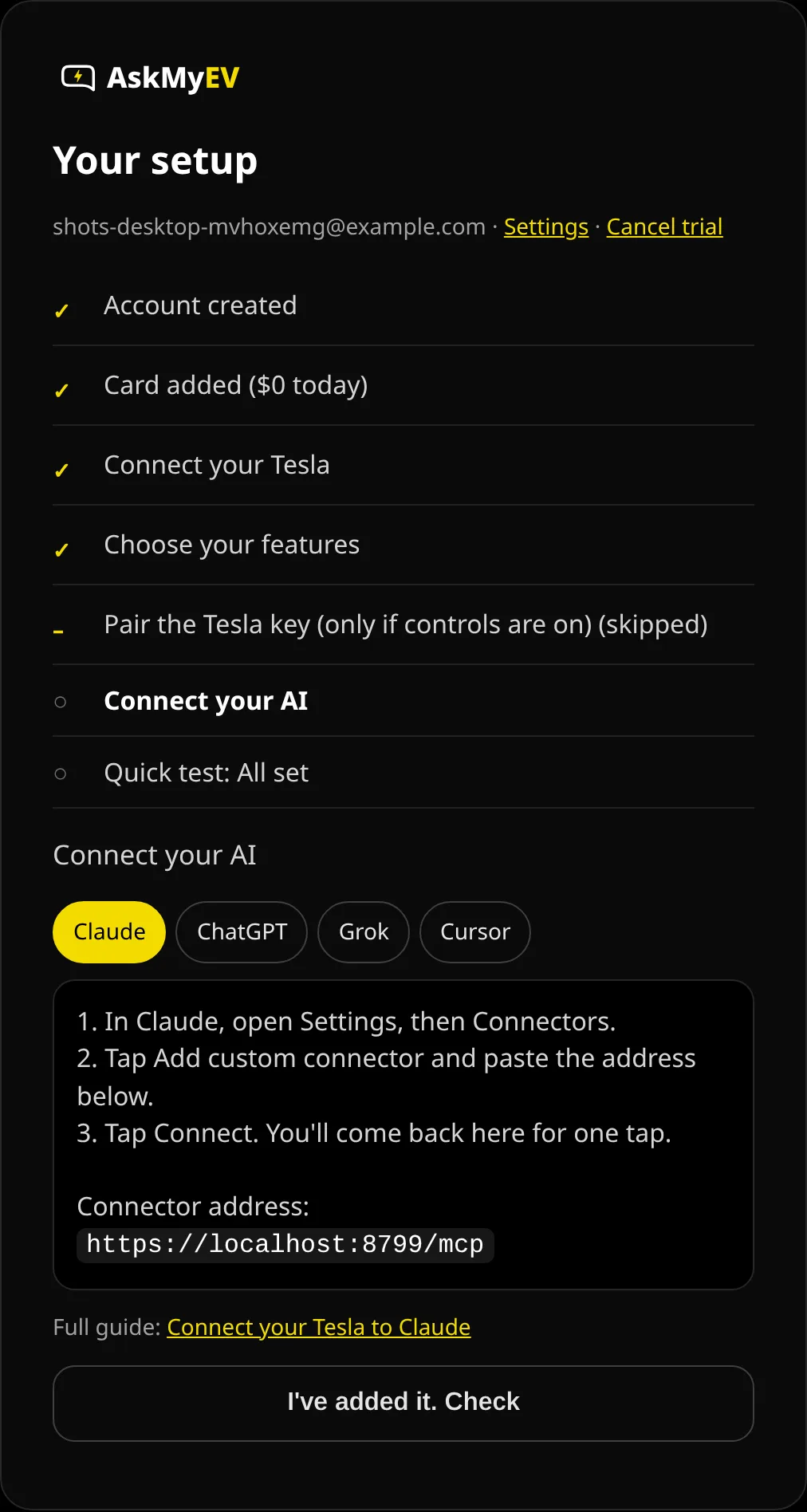
Example screen from a test account. - Go back to ${app}. Tap Finish and go back to Cursor. Then ask: “What's my battery level?” If Cursor says it isn't connected, add AskMyEV there again; it's one tap now.
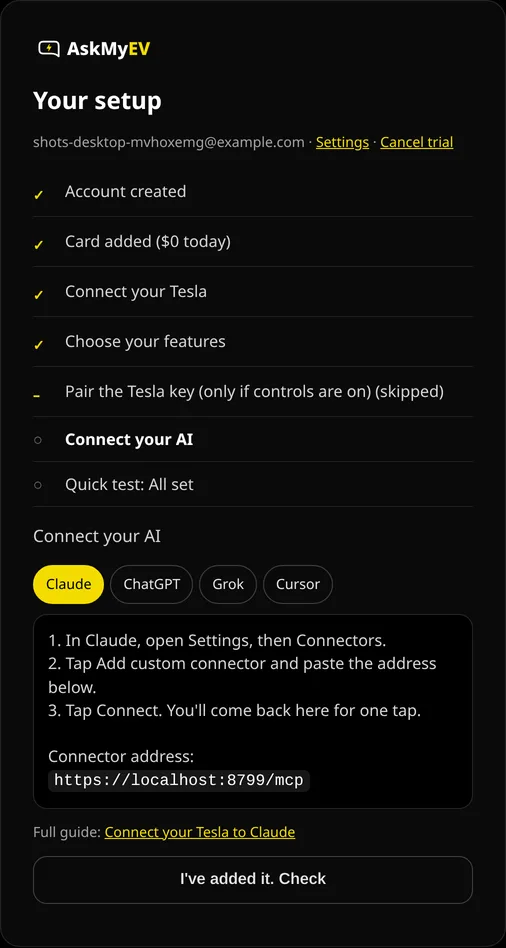
Example screen from a test account.

Part C
Use it
In Cursor's chat, ask about your car, for example “How's my Tesla's battery?”. Cursor uses MCP tools when they fit the question, and you can also ask for an AskMyEV tool by name.
Location and car controls in Cursor
Reading your car's data works right away. Location and car controls are limited to ChatGPT, Claude and Grok unless you allow other apps. To use them from Cursor, sign in at askmyev.com/account and tick Allow apps other than ChatGPT, Claude and Grok to use location and controls. Only do this if you control your Cursor account. On Tesla's permission screen, keep Vehicle Commands and Vehicle Charging Management checked if you turn on car controls.
First questions to ask
- “How's my Tesla's battery health?”
- “Is my car ready for a 200-mile trip tomorrow?”
- “Any Tesla alerts this week? What do they mean?”
- “What did charging cost me last month?”
- “Run my Tesla health check.”
More in the AskMyEV prompt library.
Troubleshooting
- AskMyEV doesn't show up: check that mcp.json is valid JSON and saved, then open Customize and make sure AskMyEV is on.
- Sign-in or connection errors: Cursor's docs suggest the Output panel: open it (Cmd+Shift+U on Mac) and choose MCP Logs.
- Tesla's screen didn't allow car controls: tap Finish setup without controls to connect anyway, and turn controls on later from your Account page.
- “Can't reach my car”: the car may be asleep or offline. Ask again in a minute, or ask for the last saved data.
Manage or disconnect
- In your AI app: remove the askmyev entry from mcp.json, or turn it off under Customize.
- At Tesla: revoke AskMyEV in your Tesla account's third-party apps (Profile, Security, Third-party apps). If you added AskMyEV's key, you can delete it on the car's touchscreen under Controls, Locks.
- Your plan: askmyev.com/account to cancel, change settings or delete your account. Cancel during the trial and you're never charged.
Is it safe?
- Off unless you turn it on. AskMyEV reads data by default. Location, car controls and remote start are off until you opt in once, during setup or on your Account page. Commands then run when you ask, with limits and no codes, and a feature may pause if use looks unusual.
- Official login. It uses Tesla's official Fleet API for third-party apps; you sign in on Tesla's page.
- No location history. If you turn location on, it is looked up live to answer a question. We don't save the coordinates.
- Battery-friendly. It doesn't wake a sleeping car unless you ask, with a cap of 1 wake-up per day for your account (3 on Fleet).
- Revocable. Remove the connector in your AI app, and revoke AskMyEV in your Tesla account's third-party apps.
Last checked October 20, 2026 against Cursor's MCP docs (cursor.com/docs/context/mcp). We don't show Cursor's own screens, so those steps are text. The pictures show AskMyEV's screens (test account, example data) and Tesla's public pages. Menus change; if yours looks different, email support@askmyev.com.
Frequently asked questions
Can Cursor read my Tesla's data?
Yes, once you add AskMyEV as an MCP server and sign in with Tesla. It can read your car's status, history and alerts (read-only by default).
Do I need an API key?
No. AskMyEV uses OAuth sign-in, so the mcp.json entry only needs the URL.
Can Cursor unlock or open my Tesla through AskMyEV?
Only if you turn car controls on yourself and also allow apps other than ChatGPT, Claude and Grok on your Account page. Your car also needs AskMyEV's key, added in the Tesla app.
How much does it cost?
Plans start with a 30-day free trial for new customers, card required, one trial per customer. Then $4.99/mo for up to 3 cars ($39/yr), or Fleet $9.99/mo for up to 10 ($89/yr).
Ask your own Tesla, in the AI you already use
Read-only by default, set up in about 3 minutes. Your first month is free (card required, $0 today, cancel anytime). Then $4.99/mo for up to 3 cars, or Fleet $9.99/mo for up to 10.
 Add to ChatGPT
 Add to Claude
 Add to Grok
 Add to Cursor